Showing posts with label Tools. Show all posts

Sunday, October 9, 2011

Tool: Updating a field value for all selected records on a form

Update:
It looks like I was re-inventing the wheel here.
Turns out that a tool doing exactly the same (and even invoked from the same place on Record info form) already exists and is called "Fill Utility". The problem is that it's disabled by default in the License configuration, so it not available.
More information about how to get it and what it does can be found in this MSDN article


Problem statement:
During a recent customer visit we received a suggestion from the developers working on customizing the customer application to their needs. The suggestion was about being able to modify the value of a certain field on a form for multiple records at once.
As you know, in AX 2012, if we wanted to change a certain property for a number of entities (for example, update the default transfer order overdelivery allowence on a number of items at once), we would have to go through them one by one, which is time consuming and definitely not fun.

Solution:
Using the small example I created we can in a simple and intuitive manner update the selected field value for all the marked records.

It looks something like this:

1.    First, you multi-select the records where a certain field needs to be updated, and open the Record information for them


2.    Then, you click Update, select the field that needs to be updated and put in the new value


3.    After you confirm the changes, all the selected records will be updated with the new value.

Download:
Download the project from my SkyDrive


Issues:
These aren't really issues, just things I did not spend time on.
  1. I did not develop the idea of selecting multiple fields to update at once. Might be a good idea. I just did not want to add more code into this little project. There's however a nice UI for selecting 1 or more fields in the DEV_SysTableBrowser project (link)
  2. I did not spend enough time trying to figure out the validation that should be in place for this. I figured, if people are gonna use it, they know what they are doing.
  3. The project is based on AX 2012. There's only 1 method with code, the rest is form controls. I figured it should be pretty easy to port this to other versions if needed.
If people find this useful, I encourage them to add whatever else modifications. I can also re-post them here on request.


Thanks

Tuesday, May 4, 2010

Tool: DEV_SysTableBrowser and DEV_CreateNewProject tools now on AX 2009

3 or so years ago I created a couple of tools that provide extra capabilities for AX developers, specifically, ease up the creation of a new project with a predefined structure and name pattern, and add functionality to the way we browse tables with the standard SysTableBrowser, allowing to specify the exact fields you want to see, browsing temporary tables. Both tools were also available as Tabax plugins

You can read more about the tools, as well as Tabax, on the following pages on Axaptapedia:
DEV_SysTableBrowser home page on Axaptapedia
DEV_CreateNewProject home page on Axaptapedia

You can download the new versions of these tools through the pages on Axaptapedia, or directly from my SkyDrive: DEV_SysTableBrowser, DEV_CreateNewProject
If you are unfamiliar with these tools, I suggest you go through Axaptapedia, as it also contains a detailed description of the features provided.

A couple of things I would like to note:
  • There is a kernel bug in AX 2009 that heavily impacts the SysTableBrowser user experience. It takes around 10 seconds each time you want to browse the contents of a specific table. This bug was fixed with a hotfix rollup 3, so users of AX 2009 without the hotfix might have problems enjoying the DEV_SysTableBrowser tool.
  • In AX 2009 the behavior of SysTableBrowser changed a bit. Instead of re-opening the browser window each time the user changes from All fields to AutoGroup only, now 2 grids with these fields are added from the beginning, and hidden/shown based on user selection. DEV_SysTableBrowser provides much more flexibility when selecting the fields to display, so I was not able to follow the same approach. Thus, see bullet 1
  • I have not added any new AOT nodes to the template in DEV_CreateNewProject tool (Data sets, Report Libraries, etc). I don't think AX developers will invest that much time into SSRS reports and EP, and in these cases they will be able to manually create the remaining group nodes in the project.

Let me know if you have comments, suggestions or ideas for these tools.
Thanks

Thursday, April 22, 2010

Tool: User preferred startup menu for Dynamics AX 2009

In AX 2009, the user has no control over which menu is opened in the navigation pane and address bar when AX client is started.
Most of the time you simply get the Home page, which is frustrating for a number of users. Another thing that is frustrating for them is the company account the application opens with.

The latter can actually be setup using standard application functionality in the User options form. Just set the 'Start company accounts' to the account you want for the user by default.

I wrote a small tool, that allows the user to select a preferred startup menu, ensuring that this menu is the one open every time AX client is started. Something similar existed in Axapta 3.0 application.

You can download the xpo for this tool from my SkyDrive.

Note, that it contains minor changes to a number of existing application objects.
I suggest that you compare the xpo from the import dialog and ensure that you don't override any of your changes during import - the best thing would be to re-implement these minor changes manually. Below is a list of changes that I am referring to above:
  • SysUserInfo table - 1 new field was added
  • SysUserSetup form - 1 new control was added. Lookup method on datasource field overridden
  • Info class - startupPost method changed

In order to enable the functionality, simply select one of the menus in the User options, as shown in the below screenshot. Next time you start AX, the selected menu will be open by default.

Start Menu in User options, Microsoft Dynamics AX 2009

Below is a short listing of "code patterns" used in the project, that can serve as examples for your future projects:
  • SysTableLookup - for displaying a lookup form with a list of menus
  • infolog.globalCache() - for storing a global reference to the navigator class
  • TreeNode iteration - for finding all menu references in MainMenu
  • QueryBuild classes - for constructing and filtering a list of menu references in MainMenu, used in the lookup form
  • infolog.addTimeOut() method - for scheduling execution of another method in a set period of time

Thursday, March 4, 2010

Highlighting your code on Blogger

A couple of people have now asked me for the tool that I use for pasting the source code on my blog.
In order to use the same, you will have to change the template of your blog and include the following scrips:


<script src='http://amalafe.googlecode.com/svn/trunk/Scripts/shCore.js' type='text/javascript'/>
<script src='http://amalafe.googlecode.com/svn/trunk/Scripts/shBrushCpp.js' type='text/javascript'/>
<script src='http://amalafe.googlecode.com/svn/trunk/Scripts/shBrushCSharp.js' type='text/javascript'/>
<script src='http://amalafe.googlecode.com/svn/trunk/Scripts/shBrushSql.js' type='text/javascript'/>
<script src='http://amalafe.googlecode.com/svn/trunk/Scripts/shBrushXml.js' type='text/javascript'/>
<link href='http://amalafe.googlecode.com/svn/trunk/Styles/shCore.css' rel='stylesheet' type='text/css'/>
<link href='http://amalafe.googlecode.com/svn/trunk/Styles/shThemeDefault.css' rel='stylesheet' type='text/css'/>
<script type='text/javascript'>
SyntaxHighlighter.config.bloggerMode = true;
SyntaxHighlighter.config.clipboardSwf = 'http://amalafe.googlecode.com/svn/trunk/Scripts/clipboard.swf';
SyntaxHighlighter.all();
</script>


After that, you will be able to create code by specifying the following:

<pre class="brush: c-sharp;">
Your code goes here...
</pre>

Tuesday, January 5, 2010

Editor script for simplifying the search in AOT

When doing code refactoring, or when investigating a particular class or form to understand the functionality behind it, it is often handy to search for variables used in its methods, looking at where and how each variable is used.

It is tedious to manually go through the steps of copying the name of the variable into the clipboard, opening up the parent class/form, opening up the AOT Find dialog for it, pasting the variable name into the Selected Text field and pressing Find now.

I have automated these steps, putting the code into an editor script.

You can download the xpo, which contains the EditorScripts class with the additional method, by following this link.

Now you should be able to very easily and quickly find the required code.

The code of the editor script:

///
/// Editor script for finding all occurrences of the selected text in the parent node of the selected method
///

///
/// Reference to the AX editor
///
///
/// 2010-01-05, ivanv
///

void addIns_FindAllOccurrencesInNode(Editor e)
{
#AOT
TreeNode treeNode;
FreeText selectedText;

FreeText GetSelectedTextFromEditor(Editor _e)
{
str 1 curSymbol;
int iCopyFrom;
int iCopyTo;
FreeText _selectedLine;
;
if (_e.markMode() != MarkMode::NoMark && _e.selectionStartCol() != _e.selectionEndCol())
{
_selectedLine = strLRTrim(subStr(_e.currentLine(), _e.selectionStartCol(), _e.selectionEndCol() - _e.selectionStartCol()));
}
else
{
_selectedLine = _e.currentLine();
for (iCopyFrom = _e.columnNo()+1; iCopyFrom >= 0; iCopyFrom--)
{
curSymbol = subStr(_selectedLine, iCopyFrom, 1);
if (!strAlpha(curSymbol) && curSymbol != '_')
break;
}
for (iCopyTo = _e.columnNo()+1; iCopyTo <= strLen(_selectedLine); iCopyTo++)
{
curSymbol = subStr(_selectedLine, iCopyTo, 1);
if (!strAlpha(curSymbol) && curSymbol != '_')
break;
}
_selectedLine = (iCopyFrom < iCopyTo) ? subStr(_selectedLine, iCopyFrom + 1, iCopyTo - iCopyFrom - 1) : '';
}
return _selectedLine;
}

void FindLinesContainingSelectedText(FreeText _selectedLine)
{
Args args = new Args(formstr(SysAOTFind));
FormRun sysAOTFindFormRun;
FormStringControl containingTextCtrl;
FormButtonControl findNowBtnCtrl;
;

sysAOTFindFormRun = classFactory.formRunClass(args);
sysAOTFindFormRun.init();
sysAOTFindFormRun.run();

// Set the text to find
containingTextCtrl = sysAOTFindFormRun.design().controlName(identifierStr(ContainingText));
containingTextCtrl.setFocus();
containingTextCtrl.pasteText(_selectedLine);

sysAOTFindFormRun.detach();

// Launch the search process
findNowBtnCtrl = sysAOTFindFormRun.design().controlName(identifierStr(FindNow));
findNowBtnCtrl.clicked();
}
;

selectedText = GetSelectedTextFromEditor(e);
if (selectedText)
{
// Find the currently open method node
treeNode = TreeNode::findNode(e.path());
// Find the parrent node of the method
treeNode = TreeNode::findNode(xUtilElements::getNodePathRough(xUtilElements::parentElement(xUtilElements::findTreeNode(treeNode))));
if (treeNode)
{
treeNode.AOTnewWindow();

FindLinesContainingSelectedText(selectedText);
}
}
}

Thursday, December 11, 2008

Tool for protecting your Dynamics AX source code

"Is there a way to protect/hide my X++ code?"
People asked me this question a million times by now.

To most of them, I described 2 possible ways to go, that I know of:
- Do not share the source code, but instead provide the customers with an AOD file.
- Use a tool that would produce obfuscated code out of your modifications.

Both ways are not perfect, of course. If you provide the code as an AOD file, you need to be sure that the customer does not have X++ license. If you provide obfuscated code, the customer developers (if they are present) will have a hard time interacting with your code. And, eventually, both ways leave the customer at a disadvantage. As soon as the vendor is not there to support (provide fixes in terms of an updated AOD file or XPO with obfuscated code) them for whatever reason, the customer has no way of supporting the add-on solution on their own.

But this post is not about the cons of trying to protect your code.
It's about the possibilities. Today, finally, I can support my previous suggestion #2 with an actual link to such a tool: Next Innovation Code Scrambler Homepage

Here is a screenshot of how the code looks after Code Scrambler is finished with it:


Note, that the tool is not free, and I have not actually tried it out.
But there is a sample project showing the resulting scrambled code. You can download it for a first impression, and contact the company if you are interested in the tool.

Another note - this is not an advertisement, I am not in any way related to Next Innovation Company.

Friday, September 14, 2007

DEV_SysTableBrowser version 2.0 is out!

I have been asked by a number of my blog readers to move this tool to Dynamics AX 3.0, so here is the updated version of this tool. Now it works on both DAX 3.0 and 4.0 (tested on 3.0 SP5 KR2 and 4.0 SP1 and SP2).

Also, I added a couple of things I considered useful to this new release:
- The user field select dialog option has now, by default, all the non-system fields selected, so that users don’t get surprised when no fields are selected. I agree – it does look strange :)
- Now it’s possible to select display methods along with table fields in the user field select dialog. This feature was already working with FieldGroups, so I decided it could be a nice add-on to the User Field List option
- I also fixed a couple of old (and new, brought to us by 4.0 SP2) bugs that existed in the tool
- After reading some of the last posts on AxForum, I decided to add the ability of browsing temporary tables into my project as well, so that others may use them if they want :) (this will also include browsing temp tables data shown in forms from Tabax when the next version comes out)
- Now you can also use the browser for debugging purposes, launching it from code (this works for temp tables as well). Just write:

SysTableBrowser::browseTable(table.TableId, table);

where table is a cursor (second parameter can be omitted for non-temp tables). In this case the browser will open and code execution will stop until you close the browser (if not in a transaction). Third parameter controls if code execution should be stopped.

- There are two variables in method new of class SysTableBrowser
saveQueryRun = true; // Enables/Disables queryRun saving when new options are specified
savePosition = true; // Enables/Disables cursor position saving when new options are specified

The options allow to save the user filters and cursor position when changing setup options.
Both operations could result in performance problems on large tables.
If that happens (or you just don't need them), just turn them to false. :)

The download link is: DOWNLOAD

See extended installation instructions and tool description on: HOMEPAGE

What was a little disappointing is that a number of bugs I wrote about earlier were not fixed since SP1. Here are the 2 I mentioned before, again:
- UPDATE_RECORDSET command, when used in the table browser, crashes DAX.
- The left top edge position (the coordinates) of the table browser gets reset when any of the options are changed. I fixed this by specifying 0 instead of -1 for the leftMode and topMode properties of the design. So when you download this tool, the browser will stay in one place, which is nice ;)

Also, 1 new bug I found is for the Russian localization team.
- Changing the view (in the Unmodified version of the browser was causing the full table list to open, prompting the user for a selection of the table). This is caused by a small validation in the SysTableBrowser::main() method. SysSetupFormRun is supposed to be the classId of the calling object. And it is not, because some system wide changes were made to the SysSetupFormRun::construct() method. Anyway, I fixed this small bug as well.

OK. That’s all about the tool and the bugs. I have also been asked by a couple of my readers to write a tutorial on using the SysListPanel class.

That’s exactly what I am going to write about in my next blog entry. After all, there is a new class extending from the SysListPanel class in the DEV_SysTableBrowser project.

Saturday, April 7, 2007

Add-On: Extended SysTableBrowser

Hello, readers.
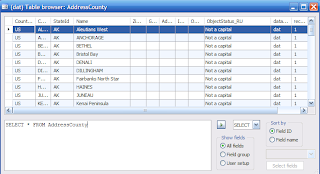
Today I provide you with another tool for Dynamics AX developers. It is a modified version of the SysTableBrowser (See picture 1).
picture 1


Important:
After importing the project refresh the AOD (Tools\Development Tools\Application Objects\Refresh AOD)

Modifications:

  1. The table browser does not change its position when a different setup is selected. (Unlike standard system behavior in DAX 4.0)

  2. The AutoReport option was extended, and now you are able to select any of the table field groups (See Credits).

  3. Another selection option was added, providing the means to select any of the table fields to be shown in the grid. To do this, just press the ‘Select Fields’ button and select the fields you want displayed (See picture 2).

  4. Added a list of presets for the SQL window. (SELECT, UPDATE, DELETE). The list can be easily extended to include other presets you often use.

  5. Extra logic was added to the ExecuteSQL button, which executes the SQL string that the user has put into the SQL window. If it is a simple select (for example, generated by the SELECT preset), the ds query is executed instead of the sql string. This will bring back the sorting and filtering options that disappear after using the sql string query.
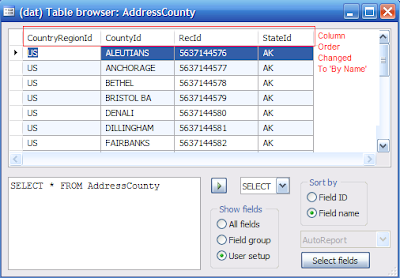
  6. Added the ability to sort columns by name or by id. In some cases (when, for example, you cannot find a specific field) it really helps out! (See picture 3)

picture 2
picture 3


Possible future improvements:

  1. Add display methods of the selected table to the list of fields in the select dialog.

Credits:


The modification was inspired by a similar one performed by Nicolai Hillstrom for Dynamics AX 3.0. I moved it to DAX 4.0 and added some extra features I considered useful. One of them is implemented here (even thought I wasn’t able to download it and see how it is programmed).